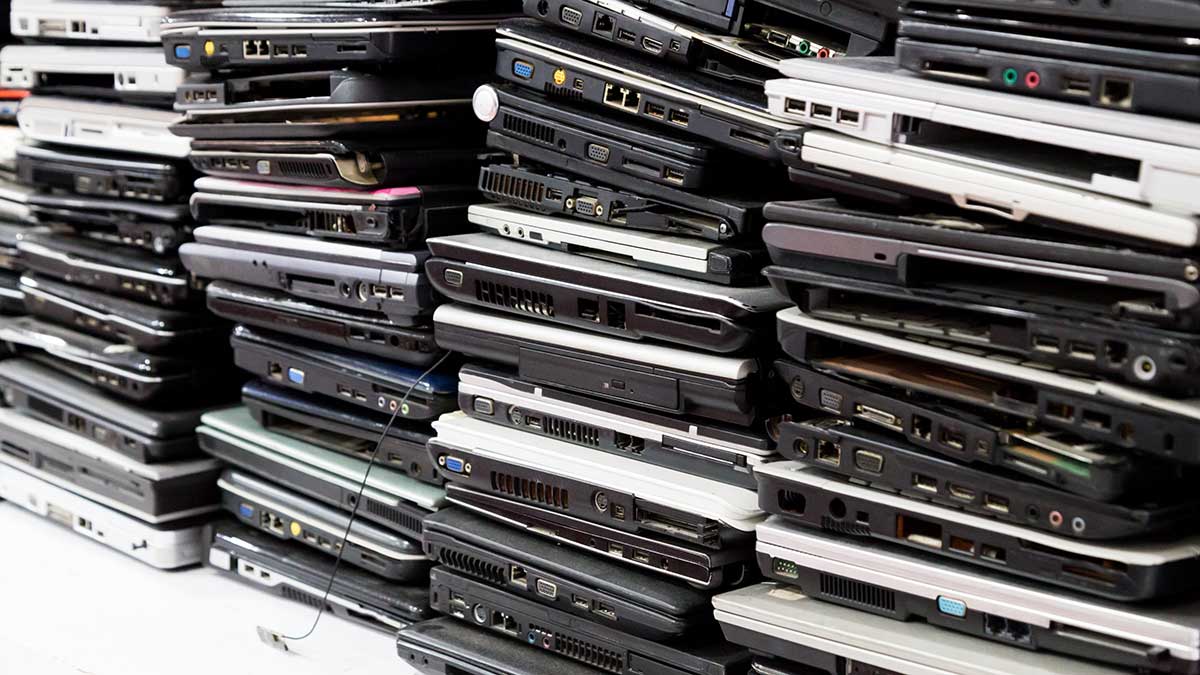
Key findings from the report include:
- Only 22.3% of e-waste generated globally was formally collected and recycled in 2022
- E-waste generation is rising five times faster than recycling investments.
- E-waste is projected to reach 82 million tonnes by 203, up 32% compared to 2022
- Improperly managed e-waste results in $78 billion in business and environmental costs from lead and mercury emissions, plastic leakages, and climate contributions
Recycling e-waste offers a huge economic opportunity. In 2022, the raw materials in global e-waste were worth $91 billion, including $19 billion in copper and $15 billion in gold, and prices paid for those metals have increased substantially since then. Only $28 billion was recovered through recycling, with most materials lost because of improper disposal.
By recycling your computer responsibly, you help recover valuable resources and keep harmful materials out of landfills.
Before you recycle your computer, make sure to protect your personal and business data. Just deleting files or reformatting your hard drive is not enough, since data can still be recovered with special tools. Follow these steps to keep your information safe.
Step 1: Back Up Your Data
Before wiping your computer, save any files you want to keep. Options include:
- External hard drive or USB flash drive
- Cloud storage services (OneDrive, Google Drive, iCloud, Dropbox)
- Windows Backup or Mac Time Machine
Step 2: Sign Out of Accounts
Sign out of all accounts and services before wiping your device, including:
- Microsoft, Apple, Samsung, or Google accounts
- Email, social media, and streaming services
- Banking and financial applications
- Work accounts and VPN connections
- Software licenses (Adobe, Microsoft Office, etc.)
Step 3: Securely Wipe Your Data
Windows 10/11
- Go to Settings > System > Recovery
- Click “Reset PC” and select “Remove everything”
- Click “Change settings” and enable “Clean data” to fully overwrite files
- Follow the prompts to complete the reset (this may take several hours)
Microsoft says that the basic “Remove everything” option only marks files as deleted; they may still be recoverable. Always enable “Clean data” when recycling or selling your PC.
Mac
- Sign out of iCloud and deauthorize iTunes
- For newer Macs: Use “Erase All Content and Settings” in System Settings
- For older Macs: Restart in Recovery Mode and use Disk Utility to erase the drive
Chromebooks running ChromeOS
- Back up files in your Downloads folder to Google Drive. Android app data and Linux apps do not sync automatically.
- Sign out of your Google Account in Settings > Accounts to prevent Factory Reset Protection from locking the device
- Go to Settings > Advanced > Reset settings > Powerwash
- Click Reset, then Restart
- After reboot, click Powerwash > Continue to confirm
The process takes just a few minutes. Your Chromebook will return to the first-time setup screen, ready for a new owner. If your Chromebook is managed by a school or employer, contact your administrator; you cannot reset managed devices yourself.
For Enhanced Business or Sensitive Data Security
- Clear: Overwrites data with new patterns; suitable for internal reuse
- Purge: Multiple overwrite passes; suitable for devices leaving your control
- Destroy: Physical destruction for highly classified data.
R2- and e-Stewards-certified recyclers follow the NIST standard and can provide certificates of data destruction upon request.
Step 4: Prepare the Hardware
- Unplug peripherals (keyboard, mouse, speakers, external drives)
- For laptops, remove the battery if you can. Many laptops use lithium-ion batteries, which need special handling.
- Keep chargers and cables if the recycler accepts them
A great way to get rid of a working computer is through a manufacturer’s trade-in program. These programs give you credit toward new purchases and make sure your old device is either refurbished or recycled responsibly. This way, you save money and help reduce e-waste.
Apple | Trade in any Apple device for credit or gift card. Non-qualifying devices recycled free. | |
Dell | Accepts Dell and non-Dell devices. Free shipping. Non-qualifying items recycled free. | |
HP | Trade in for credits toward new HP purchases. Planet Partners program for free recycling. | |
Lenovo | Trade in laptops, desktops, tablets for Visa Gift Card. Devices up to 4 years old preferred. | |
Microsoft | Cash back via PayPal or bank transfer for qualifying devices. Free recycling otherwise. |
Best Buy
- Accepts up to three items per household per day, with a limit of five laptops total
- Free recycling for most electronics, including computers, tablets, keyboards, and cables
- The chain works with certified recyclers meeting e-Stewards, R2, and ISO standards
- Mail-in recycling boxes are available for purchase if you can’t visit a store
- Trade-in program offers gift cards for working devices
Staples
- Accepts up to seven items per day
- Takes computers, tablets, monitors, printers, keyboards, and cables
- The chain partners with e-Stewards-certified recyclers
- Staples Rewards members earn $5 back for recycling tech items
Dell Reconnect (Goodwill Partnership)
- Accepts any brand of electronics in any condition
- More than 650 million pounds of e-waste have been diverted from landfills
- Materials recovered support Goodwill’s job training programs
- Drop off at participating Goodwill locations in 44 states
If your computer still works, donating it might be better than recycling. Working devices can help students, nonprofits, and underserved communities get access to technology. Reusing computers keeps materials in use longer and can be even better for the environment than recycling.
National Donation Programs
- World Computer Exchange provides computers to schools and communities in developing countries. Free mail-in is available for laptops less than 7 years old. The organization offers R2-certified data destruction service to protect your data.
- Human-I-T refurbishes donated devices for low-income families, veterans, seniors, and nonprofits. Accepts working and non-working devices.
- PCs 4 People connects donated technology with people in need across the U.S. The organization is R2-certified, has several locations nationwide, and offers refurbished computers to low-income families, schools, and nonprofits.
Can I recycle computers in my curbside program?
Most curbside programs do not accept computers because they are bulky and made from many materials. You will need to use special e-waste recycling services. If your area has bulky waste recycling, check that electronics are sent to certified recyclers, not landfills.
What recycling certifications should I look for?
The two most recognized certifications for electronics recyclers in North America are:
- e-Stewards — Since 2006, ensures no electronics are exported overseas for improper processing
- R2 Standard — Since 2008, focuses on data destruction and responsible recycling processes
Is it illegal to throw my computer in the trash?
Should I upgrade instead of recycling?
What about large quantities of computers?
If you have just one computer to recycle, a retailer or mail-back program is a good choice. For larger numbers, contact an e-waste recycler to arrange a pickup. Many recyclers will collect these for free to recover valuable materials.
Editor’s Note: Originally published on May 11, 2011, this recycling guide was most recently updated in December 2025.
Source link
Earth911 earth911.com